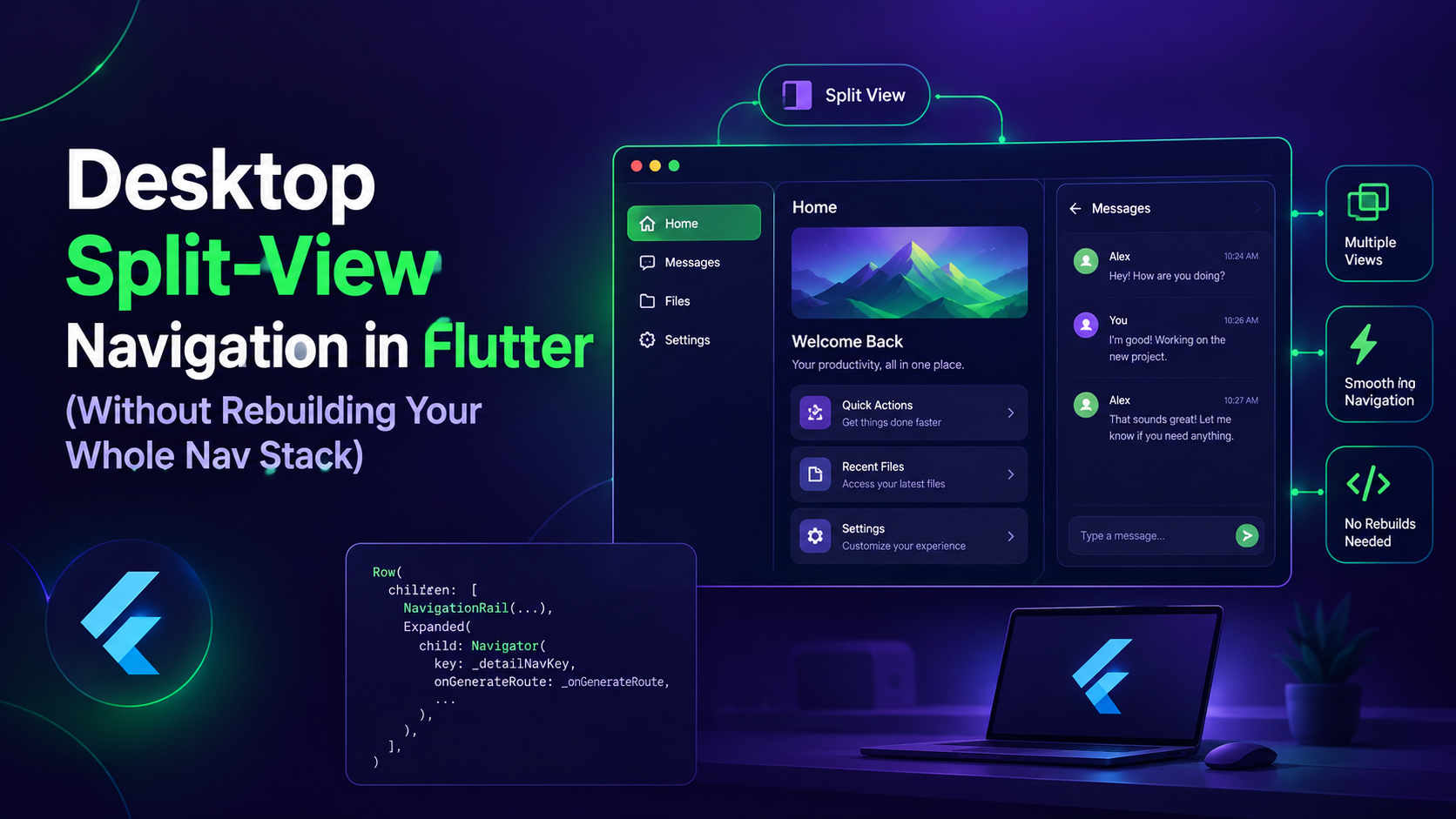
Desktop Split-View Navigation in Flutter (Without Rebuilding Your Whole Nav Stack)
The Problem: Your Router Was Built for One Screen at a Time
If you're shipping a Flutter app on iOS and Android first, your navigation is almost certainly full-screen push/pop. One route, one screen, one back button. That's fine — until you add macOS or a tablet layout and suddenly a list-detail view is expected to behave like a split view, not two separate pushed routes.
I hit this exact wall building the Learning Hub feature in Waya. On mobile, tapping a flashcard set pushes a new screen. On desktop, that same tap should swap the right pane while the list stays put on the left. Same feature, same view models, two completely different navigation behaviors — and I didn't want to fork the whole feature into _mobile.dart and _desktop.dart versions.
The fix ended up being two small things: an isEmbedded flag threaded through the screen, and ValueKey used deliberately to stop Flutter from doing the wrong thing when panes swap.
Step 1: Detect the Layout, Don't Hardcode the Platform
First mistake I made: checking Platform.isMacOS to decide on split-view. Don't do this — it breaks the second someone resizes a window on desktop into a narrow layout, or you eventually support a wide Android tablet. Use available width instead.
1class LearningHubScreen extends StatelessWidget { const LearningHubScreen({super.key}); static const _splitViewBreakpoint = 840.0; Widget build(BuildContext context) { return LayoutBuilder( builder: (context, constraints) { final isSplitView = constraints.maxWidth >= _splitViewBreakpoint; return isSplitView ? const _SplitViewLayout() : const _StackedNavLayout(); }, ); } }This keeps the decision reactive — resize the window, the layout adapts, no restart needed.
Step 2: The isEmbedded Flag
Here's the part that actually saved me from a full rewrite. Every detail screen in the Learning Hub (flashcard set, quiz, streak view) already existed as a route pushed via auto_route. Instead of writing a second version of each screen for the split-view pane, I gave each one an isEmbedded parameter.
1() class FlashcardSetView extends StatelessWidget { const FlashcardSetView({ required this.setId, this.isEmbedded = false, super.key, }); final String setId; final bool isEmbedded; Widget build(BuildContext context) { final content = FlashcardSetContent(setId: setId); if (isEmbedded) { // No Scaffold, no AppBar back button — it's living inside a pane. return content; } return Scaffold( appBar: AppBar(title: const Text('Flashcard Set')), body: content, ); } }The screen doesn't care whether it's a full-screen mobile route or a pane on desktop — it just stops drawing its own chrome when embedded. All the actual logic stays in FlashcardSetContent, shared by both paths. One view model, one source of truth, zero duplicated business logic.
Step 3: Wiring the Split-View Pane
The split-view shell itself is a simple Row with a fixed-width list on the left and the detail pane on the right, driven by whatever's currently "selected."
1class _SplitViewLayout extends StatefulWidget { const _SplitViewLayout(); State<_SplitViewLayout> createState() => _SplitViewLayoutState(); } class _SplitViewLayoutState extends State<_SplitViewLayout> { String? _selectedSetId; Widget build(BuildContext context) { return Row( children: [ SizedBox( width: 320, child: FlashcardSetList( onSelect: (id) => setState(() => _selectedSetId = id), ), ), const VerticalDivider(width: 1), Expanded( child: _selectedSetId == null ? const _EmptyDetailPlaceholder() : FlashcardSetView( key: ValueKey(_selectedSetId), setId: _selectedSetId!, isEmbedded: true, ), ), ], ); } }Step 4: Why ValueKey Isn't Optional Here
This is the part that bit me before I understood it properly. Without a key, Flutter's element tree diffing sees FlashcardSetView as "the same widget" every time you tap a different set — same type, same position in the tree — and just updates its setId field in place. That sounds fine, but any internal state in FlashcardSetContent (scroll position, a PageController, animation state) survives across sets it shouldn't survive across. You get a subtle bug where flipping to a new flashcard set shows the old scroll position or a half-finished animation from the previous one.
ValueKey(_selectedSetId) tells Flutter "this is a genuinely different widget" whenever the id changes, forcing a clean dispose-and-rebuild of that subtree instead of an in-place update. It's a one-line fix, but only if you know to look for it — the symptom (stale internal state) doesn't obviously point back to a missing key.
Rule of thumb I now follow: any time you're swapping the child of a fixed-position slot based on some identifier, key it by that identifier.
Step 5: Keeping Mobile Untouched
The mobile path didn't need to change at all — it still pushes FlashcardSetView as a normal route with isEmbedded defaulted to false:
1class _StackedNavLayout extends StatelessWidget { const _StackedNavLayout(); Widget build(BuildContext context) { return AutoRouter(); // existing mobile route stack, unchanged } }That's the whole point of the isEmbedded pattern — desktop split-view becomes additive, not a parallel navigation system you now have to maintain forever.
What I'd Do Differently Next Time
If I were starting this over, I'd add the isEmbedded parameter to screens from day one, even on mobile-only features. Retrofitting it onto half a dozen existing screens after the fact meant touching every one of them, whereas building it in from the start costs nothing and buys you desktop support for free later.
Conclusion
Split-view navigation in Flutter isn't a separate navigation framework you need to bolt on — it's a layout decision plus two small patterns: an isEmbedded flag so screens can drop their own chrome, and deliberate ValueKey usage so Flutter rebuilds cleanly when panes swap. Both are cheap to add and don't touch your existing mobile routing at all.
Resources
- Flutter LayoutBuilder documentation — responsive layout decisions based on constraints
- auto_route package — the router used for the mobile stack in this example
- Flutter Keys documentation — how keys affect element tree diffing
- Understanding widget keys in Flutter — official guide on when keys matter
- Adaptive layouts in Flutter — Google's guidance on responsive/adaptive UI patterns
- Material split-view / list-detail pattern — design reference for list-detail layouts