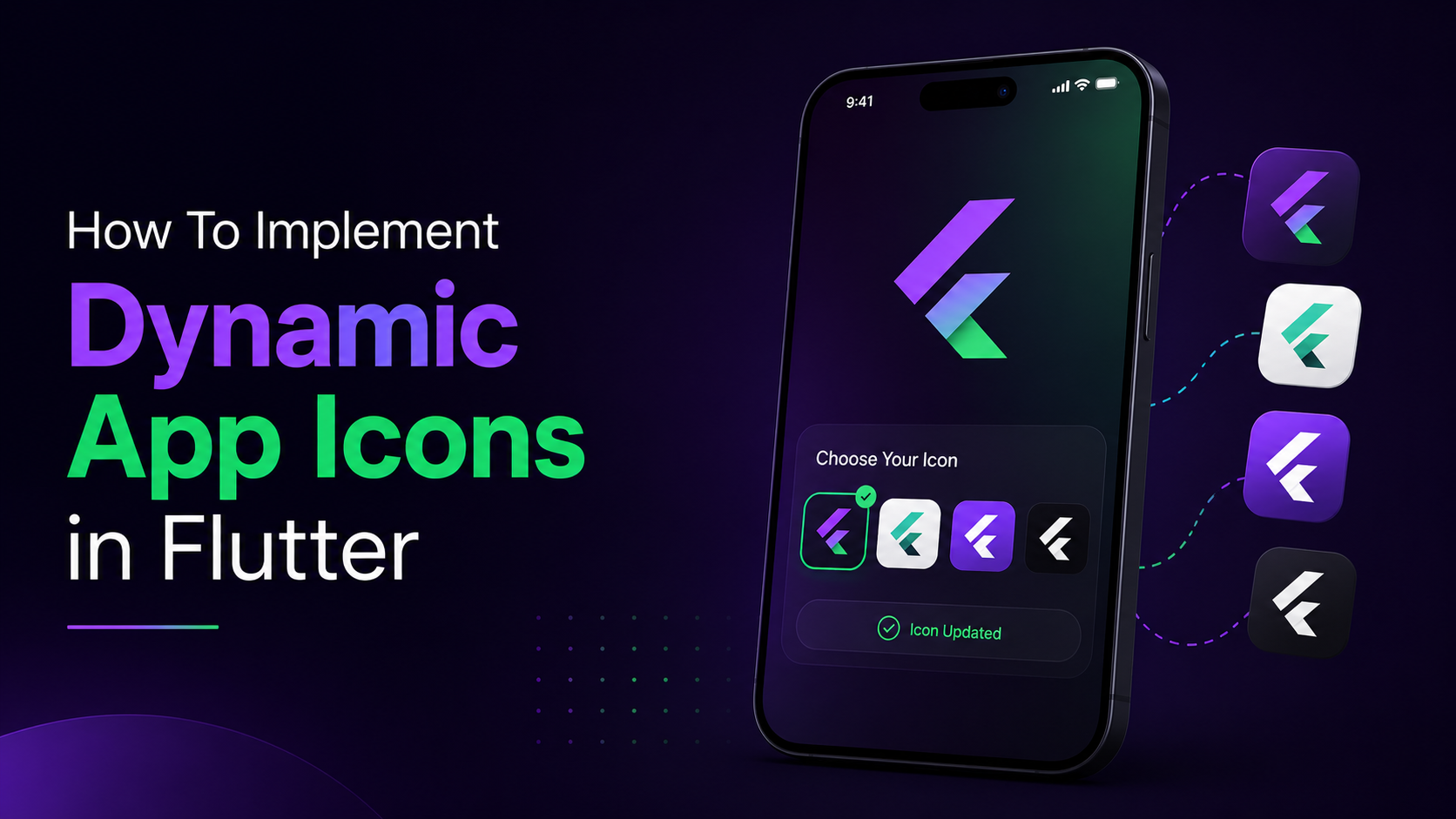
How To Implement Dynamic App Icons in Flutter
So, What Exactly Are Dynamic App Icons?
In simple terms: your app's launcher icon changes at runtime based on whatever's happening — a festival, a sale, a big sports event, a product launch — without the user updating the app from the store.
Instead, all the icon variants are bundled inside your app from day one. When a trigger condition is met (say, it's Diwali, or your backend flags a "campaign active" flag), the app just switches which bundled icon is showing.
Real apps already do this:
- 🟣 Zepto — runs unique icons tied to specific promotions
- 🔵 Uber — occasion-based icons for holidays and celebrations
- ⚫ OLX — periodic campaign icons
It's a small detail, but it makes your app feel alive and "in the moment" — which is genuinely good for engagement and re-opens.
Why Bother? (The Selling Points)
- ✅ No app update required — the icon change is instant, no store review wait
- ✅ Festival & event ready — Diwali, Christmas, New Year, IPL, World Cup, sales — whatever you want
- ✅ Easy implementation — a couple of packages and some native config, that's it
- ✅ Cross-platform support — works on both Android and iOS, just with different underlying mechanics
The catch? You can't download new icons after the app is installed. Every icon variant has to be bundled into the app binary from the start. So plan your festival calendar in advance and ship all the icons you'll need for the year in one go.
How It Actually Works (High Level)
Here's the general flow, regardless of platform:
- App launches
- It checks a festival/event source (backend API, Firebase Remote Config, or just current date logic)
- It compares that against the currently active icon
- If there's a mismatch, it triggers a platform channel call
- Native Android/iOS code switches the icon
- The launcher refreshes and shows the new icon — no restart needed
Flutter handles the "when" and "what," while the native side handles the actual icon-swapping mechanics (because, unsurprisingly, Android and iOS do this very differently under the hood).
Setting Up the Flutter Side
There are a couple of solid packages for this — I'd recommend flutter_dynamic_icon for something lightweight, or flutter_dynamic_icon_plus if you want more active development and extra features.
1# pubspec.yaml
2dependencies:
3  flutter_dynamic_icon: ^2.1.0
4  # or
5  flutter_dynamic_icon_plus: ^1.0.0
Now the actual Dart code to trigger an icon change is refreshingly simple:
1import 'package:flutter_dynamic_icon/flutter_dynamic_icon.dart';
2
3Future<void> changeIcon(String? iconName) async {
4  // Passing null resets to the default icon
5  if (await FlutterDynamicIcon.isSupported) {
6    await FlutterDynamicIcon.setAlternateIconName(iconName);
7  }
8}
9
10// Usage
11await changeIcon('diwali');    // Switch to Diwali icon
12await changeIcon('christmas'); // Switch to Christmas icon
13await changeIcon(null);        // Reset back to default
You can also check what's currently active, which is handy if you don't want to fire redundant icon-change calls:
1Future<String?> getCurrentIcon() async {
2  final iconName = await FlutterDynamicIcon.getAlternateIconName();
3  return iconName; // returns null if the default icon is active
4}
That's the Flutter side sorted. Now let's get into the native setup — this is where the real work happens.
Android Implementation
Android doesn't have a built-in "change my icon" API. Instead, it uses something called activity-alias — basically, you declare multiple entry points into your app (each with a different icon), and you enable exactly one while disabling the rest.
Step 1 — Drop all your icon variants into the mipmap folders
1android/app/src/main/res/
2├── mipmap-hdpi/
3│   ├── ic_launcher.png       (default)
4│   ├── ic_launcher_diwali.png
5│   ├── ic_launcher_christmas.png
6│   └── ic_launcher_newyear.png
7├── mipmap-mdpi/ ...
8├── mipmap-xhdpi/ ...
Step 2 — Declare the aliases in AndroidManifest.xml
Your main activity stays as-is, but you add an activity-alias block for every icon variant:
1<activity
2    android:name=".MainActivity"
3    android:exported="true">
4    <intent-filter>
5        <action android:name="android.intent.action.MAIN" />
6        <category android:name="android.intent.category.LAUNCHER" />
7    </intent-filter>
8</activity>
9
10<activity-alias
11    android:name=".DiwaliIcon"
12    android:enabled="false"
13    android:exported="true"
14    android:icon="@mipmap/ic_launcher_diwali"
15    android:label="@string/app_name"
16    android:targetActivity=".MainActivity">
17    <intent-filter>
18        <action android:name="android.intent.action.MAIN" />
19        <category android:name="android.intent.category.LAUNCHER" />
20    </intent-filter>
21</activity-alias>
Repeat this pattern for every icon variant (Christmas, New Year, etc.) — just make sure only one alias is enabled="true" at any given time, and the default MainActivity entry usually stays as the "fallback."
Step 3 — Write the native switching logic (Kotlin)
This is the piece that actually flips which alias is active:
1object IconChanger {
2    private const val DEFAULT = ".MainActivity"
3    private const val DIWALI = ".DiwaliIcon"
4    private const val CHRISTMAS = ".XmasIcon"
5    private const val NEWYEAR = ".NewYearIcon"
6
7    fun changeIcon(context: Context, iconName: String) {
8        val pm = context.packageManager
9        val packageName = context.packageName
10
11        val aliasList = listOf(DEFAULT, DIWALI, CHRISTMAS, NEWYEAR)
12
13        // Disable everything first
14        aliasList.forEach {
15            val component = ComponentName(packageName, "$packageName$it")
16            pm.setComponentEnabledSetting(
17                component,
18                PackageManager.COMPONENT_ENABLED_STATE_DISABLED,
19                PackageManager.DONT_KILL_APP
20            )
21        }
22
23        // Then enable only the one we want
24        val newComponent = ComponentName(packageName, "$packageName$iconName")
25        pm.setComponentEnabledSetting(
26            newComponent,
27            PackageManager.COMPONENT_ENABLED_STATE_ENABLED,
28            PackageManager.DONT_KILL_APP
29        )
30    }
31}
The nice part? No app restart needed — the launcher picks up the change automatically.
Step 4 — Bridge it from Flutter using a MethodChannel
1import 'package:flutter/services.dart';
2
3class IconService {
4  static const MethodChannel _channel =
5      MethodChannel('app_icon_channel');
6
7  static Future<void> changeIcon(String iconName) async {
8    await _channel.invokeMethod('changeIcon', {'iconName': iconName});
9  }
10}
11
12// Usage
13await IconService.changeIcon('DiwaliIcon');
14// or reset
15await IconService.changeIcon('DefaultIcon');
iOS Implementation
iOS is honestly the more elegant of the two — it has native support for Alternate App Icons built right into the platform, no activity-alias gymnastics required.
Step 1 — Add your icon sets in Xcode
Head to Assets.xcassets and create a new App Icon set for every variant: AppIcon (default), AppIconDiwali, AppIconChristmas, AppIconNewYear, and so on. Each set needs all the required icon sizes, just like your primary app icon.
Step 2 — Register them in Info.plist
1<key>CFBundleIcons</key>
2<dict>
3    <key>CFBundlePrimaryIcon</key>
4    <dict>
5        <key>CFBundleIconName</key>
6        <string>AppIcon</string>
7    </dict>
8    <key>CFBundleAlternateIcons</key>
9    <dict>
10        <key>Diwali</key>
11        <dict>
12            <key>CFBundleIconName</key>
13            <string>AppIconDiwali</string>
14        </dict>
15        <key>Christmas</key>
16        <dict>
17            <key>CFBundleIconName</key>
18            <string>AppIconChristmas</string>
19        </dict>
20        <key>NewYear</key>
21        <dict>
22            <key>CFBundleIconName</key>
23            <string>AppIconNewYear</string>
24        </dict>
25    </dict>
26</dict>
Step 3 — Switch icons from Flutter
The good news: the same flutter_dynamic_icon call you saw earlier works identically here. Under the hood, it calls UIApplication.setAlternateIconName() for you.
1await changeIcon('Diwali');    // Matches the key in Info.plist
2await changeIcon('Christmas');
3await changeIcon(null);        // Reverts to primary icon
A couple of iOS-specific quirks worth knowing:
- 📌 Requires iOS 10.3+
- 📌 The first icon change may trigger a small system confirmation prompt to the user — that's expected iOS behavior, not a bug
- 📌 Just like Android, you cannot download new icons post-install — bundle everything upfront
Putting It All Together — The Full Picture
Once both platforms are wired up, the actual "decide which icon to show" logic usually lives in one place in your Flutter app:
1Future<void> checkAndUpdateIcon() async {
2  final activeFestival = await fetchActiveFestivalFromBackend();
3  final currentIcon = await getCurrentIcon();
4
5  if (activeFestival != currentIcon) {
6    await changeIcon(activeFestival); // null if no festival is active
7  }
8}
Where fetchActiveFestivalFromBackend() could pull from:
- A simple backend API response, like:
1{
2    "active": true,
3    "festival": "Diwali",
4    "icon": "diwali",
5    "startDate": "2024-10-25",
6    "endDate": "2024-11-02",
7    "message": "Happy Diwali!"
8  }
Firebase Remote Config Or honestly, even just hardcoded date-range logic if you don't want a backend dependency.
Best Practices Before You Ship This
- 🎨 Design and bundle all icons in advance — you genuinely cannot add new ones later without a fresh app release
- 🏷️ Keep icon names consistent across your Android aliases, iOS asset names, and your backend/config keys — mismatches here are a classic source of bugs
- ☁️ Control the "active" icon from a backend or remote config, not hardcoded dates — way easier to manage campaigns without touching code
- 📱 Test on multiple devices and launchers — especially on Android, since some OEM launchers (Samsung, Xiaomi, etc.) can behave a little differently with
activity-alias - 🔄 Always provide a way back to the default icon — don't leave users stuck with a "New Year" icon in March
Wrapping Up
Dynamic app icons look impressive to users but are cheap to build once the plumbing's in place. The real work isn't the code — it's discipline: design every icon variant upfront, keep names in sync across Android aliases, iOS asset catalogs, and backend config, and always leave a path back to default.
If you're doing this for a real campaign calendar, start with two icons — default plus one seasonal — end-to-end on both platforms before scaling to a dozen. It's a lot easier to catch a naming mismatch when there's only one alternate to check against.
Sources & Further Reading
Configuring your app to use alternate app icons — Apple's official setup guide
Link: https://developer.apple.com/documentation/xcode/configuring-your-app-to-use-alternate-app-icons
setAlternateIconName(_:completionHandler:) — Apple Developer Documentation
Link: https://developer.apple.com/documentation/uikit/uiapplication/setalternateiconname(_:completionhandler:)
<activity-alias> — Android Developers manifest reference
Link: https://developer.android.com/guide/topics/manifest/activity-alias-element
flutter_dynamic_icon_plus — pub.dev package page
Link: https://pub.dev/packages/flutter_dynamic_icon_plus
flutter_dynamic_icon — pub.dev package page
Link: https://pub.dev/packages/flutter_dynamic_icon